Silver Wireless Controller + Charging Dock: Switch/PC/iPad
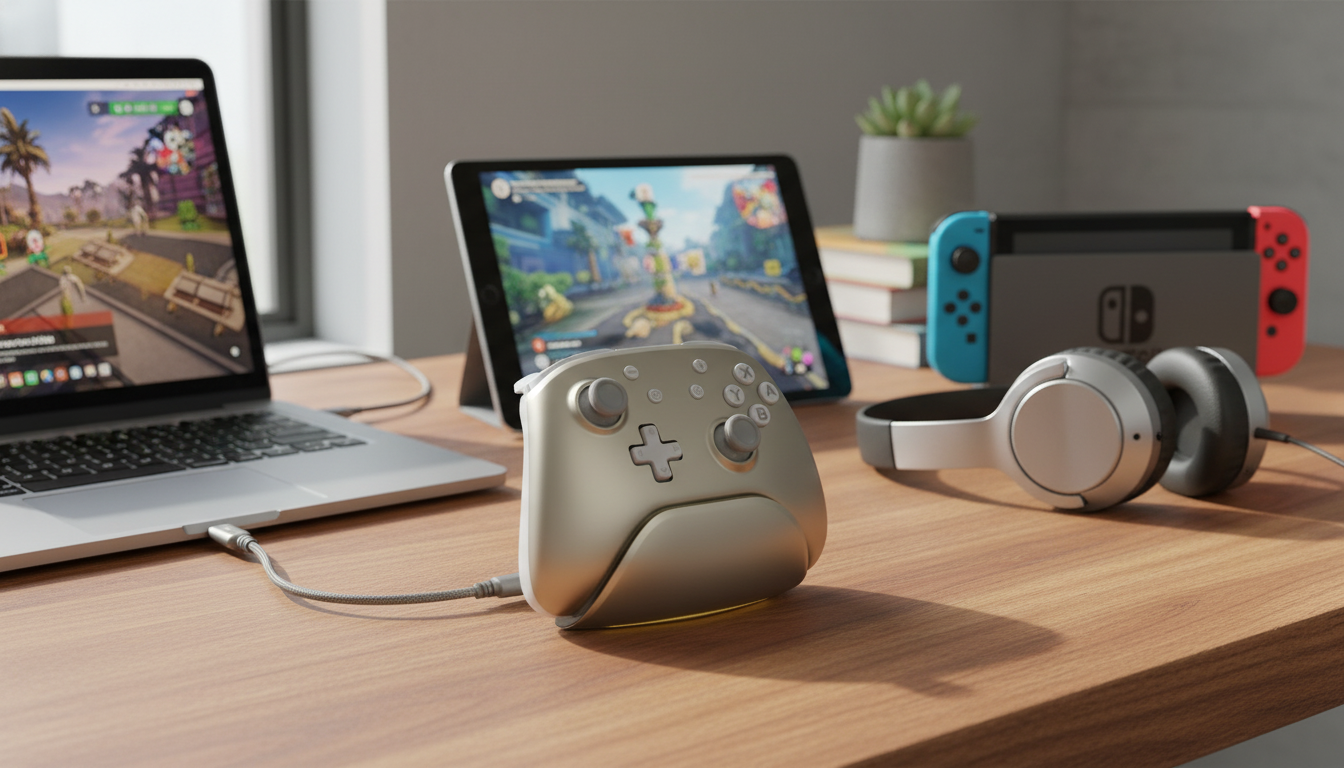
Wireless Silver Gaming Controller with Charging Dock for Switch, PC & iPad: A Practical Guide
A multi-device controller can simplify game nights and travel setups—especially when it stays charged and ready to grab. This guide breaks down what to expect from a wireless gaming controller that works across Switch, PC, and iPad, and how a charging dock changes day-to-day convenience. If the goal is less time troubleshooting and more time playing, the small details—pairing flow, dock design, and connection stability—matter just as much as the look.
What Makes a Charging Dock Worth It
A charging dock is one of those accessories that feels optional—until it becomes part of the routine. For many setups, it improves the “grab-and-play” experience more than a longer charging cable ever could.
- Reduces cable clutter by giving the controller a consistent “home” between sessions.
- Encourages top-off charging so the controller is more likely to be ready when needed.
- Helps protect ports from repeated plugging/unplugging by shifting charging to dock contacts or a single dock cable (depending on design).
- Makes a tidy setup for desks, TV stands, and shared family consoles.
For a living-room console, a dock also makes it clearer where the controller belongs. For a desk setup, it keeps the controller upright, visible, and less likely to get buried under headphones, cables, or notebooks.
Compatibility Across Switch, PC, and iPad
Multi-platform compatibility is only “real” when switching between devices is predictable. The best experience comes from controllers that pair quickly, reconnect reliably, and keep button mapping intuitive per platform.
Nintendo Switch
- Switch support is best when pairing is straightforward and input mapping feels natural for Nintendo-style layouts.
- For official steps and troubleshooting, Nintendo’s support hub is a reliable reference: Nintendo Support.
PC (Windows)
- PC support is most flexible when the controller connects reliably over Bluetooth and works smoothly with common game launchers.
- If Bluetooth pairing is finicky, Windows updates and adapter drivers often make the difference; Microsoft’s troubleshooting guide can help: Microsoft Support: Bluetooth in Windows.
iPad (iPadOS)
- iPad gaming benefits from stable Bluetooth pairing and broad controller support in Apple Arcade and many App Store titles.
- Apple’s controller compatibility notes and pairing guidance are worth keeping bookmarked: Apple Support: Use a game controller with iPhone, iPad, or Apple TV.
For frequent switching between devices, quick re-pairing behavior and predictable connection steps are key. When a controller “remembers” the last device too aggressively, switching can feel like a mini project—especially in a household with multiple tablets and PCs.
Everyday Performance: What to Pay Attention To
On paper, many controllers look similar. In daily use, the differences show up in the basics: how stable the connection feels, how the controller sits in your hands, and whether charging is effortless or annoying.
- Wireless stability: Look for consistent connection without random dropouts at typical living-room distances. A controller that only behaves well within a few feet of the screen can become frustrating fast.
- Latency feel: Responsiveness during fast inputs (platformers, shooters, rhythm games) matters more than raw specs. If jumps feel “late” or aim feels floaty, it will stand out.
- Grip comfort: Handle shape, weight balance, and button reach affect longer sessions. Small changes in contour can reduce hand fatigue over time.
- Controls: Stick tension, trigger travel, and D-pad accuracy can change how different genres feel. A precise D-pad matters for retro collections and fighting games; smooth sticks help in 3D camera control.
- Dock experience: Secure seating, easy alignment, and visible charging status (if available) help avoid surprise low-battery moments. A dock should feel natural to use without needing to “line it up” repeatedly.
Quick Comparison: Dock Charging vs Cable-Only Charging
| Feature | Charging Dock | Cable-Only |
|---|---|---|
| Grab-and-play readiness | High (easy to keep topped up) | Medium (depends on habits) |
| Desk/TV setup tidiness | High | Low–Medium |
| Port wear from charging | Lower (less frequent plugging) | Higher (frequent plugging) |
| Travel convenience | Medium (extra accessory) | High (single cable) |
| Shared household use | High (clear place to store/charge) | Medium (misplaced cables/controllers) |
Setup Tips for Smooth Pairing and Switching
Product Snapshot: Wireless Silver Gaming Controller with Charging Dock
The Wireless Silver Gaming Controller with Charging Dock for Switch, PC & iPad is built for a multi-platform setup with the convenience of a dedicated dock. The silver finish blends easily with modern desks and entertainment centers, and the dock helps establish a consistent charging routine so the controller is ready when it’s time to play.
| Detail | Value |
|---|---|
| Product | Wireless Silver Gaming Controller with Charging Dock for Switch, PC & iPad |
| Price | 48.51 USD |
| Availability | In stock |
More In-Stock Finds (Giftable Add-Ons)
- 1:32 RC Sports Car Off-Road Rock Crawler High-Speed Drift Remote Control Monster Truck (a simple, screen-free add-on for game-night downtime)
- AI Tips to Elevate Your Writing Voice | Editable Writing Tone Checklist (a digital download for creators who also want a structured way to polish tone)
FAQ
Will a wireless controller work with iPad games automatically?
Many iPad games support controllers, but compatibility varies by title. Pair the controller in the iPad’s Bluetooth settings, then test with a known-supported game (Apple Arcade titles are a common starting point).
Can the controller stay on the charging dock all the time?
Many modern controllers handle standby charging well, but it’s best to follow the included instructions for charging and storage. If anything seems inconsistent, re-seat the controller occasionally and keep the dock in a ventilated spot.
Why does the controller connect but not respond on PC?
Remove the device from Bluetooth settings and re-pair it, then confirm the game actually supports controller input. If it still doesn’t respond, try a different Bluetooth adapter or check Windows Bluetooth and driver updates.
















Leave a comment